

Shopify's NEW Feature: You Can Now Build Reports Using Metafields
This small reporting update could change how you analyse your store


Shopify has just released a powerful reporting update - you can now build reports using metafields.
That means product, variant, customer and even order metafields can now be used inside Shopify Analytics.
If you’ve been using metafields for things like:
Ingredients
Materials
Gender
Delivery types
VIP customer status
Seasons or collections
…you can now report on that data properly.
And this is a much bigger deal than it sounds.
Let’s break down what this means, how to set it up, and how you can use it to make smarter decisions inside your store.
Or you can watch it here:
Step 1: Make Sure Your Metafields Are Set Up Properly
Before you can report on anything, you need to have your metafields configured correctly.
You can manage these in:
Settings → Metafields and metaobjects
Or via:
Content → Metaobjects → Manage
From here, you can create metafield definitions for:
Products
Variants
Collections
Customers
Orders
Pages
Blogs
& more
For example, you might create a Product metafield called Material and define it as a choice list (e.g. Wood, Metal, Cotton, Recycled Plastic, etc.).
When setting this up, make sure you:
Define the type correctly (e.g. single line text, list, reference, etc.)
Add your available options
Most importantly - toggle on “Use in analytics”
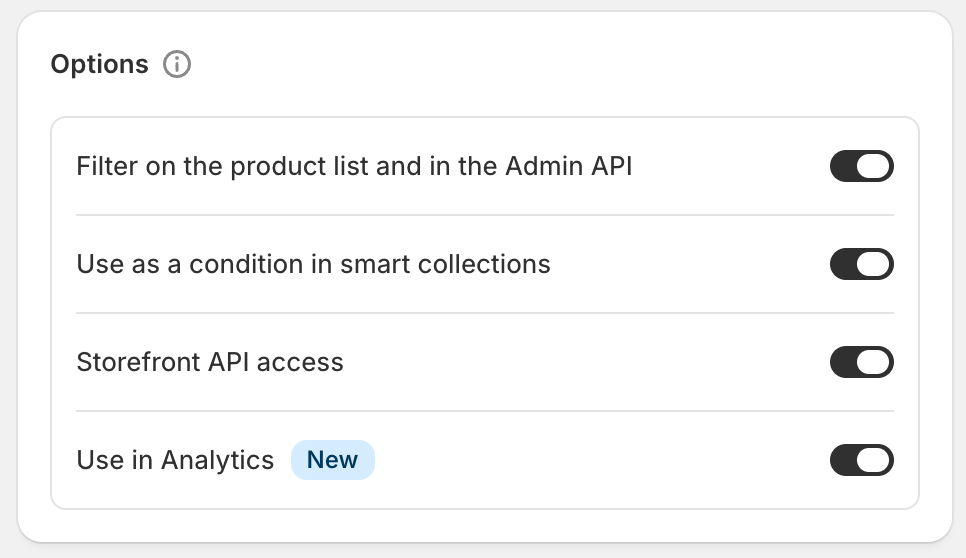
That final toggle is the key to this entire update.
Important: Populate Your Data
If you’ve just created a new metafield, don’t forget:
You need to assign values to your products, customers or orders.
You can do this via:
Bulk editor
CSV export/import
API (if you’re more advanced)
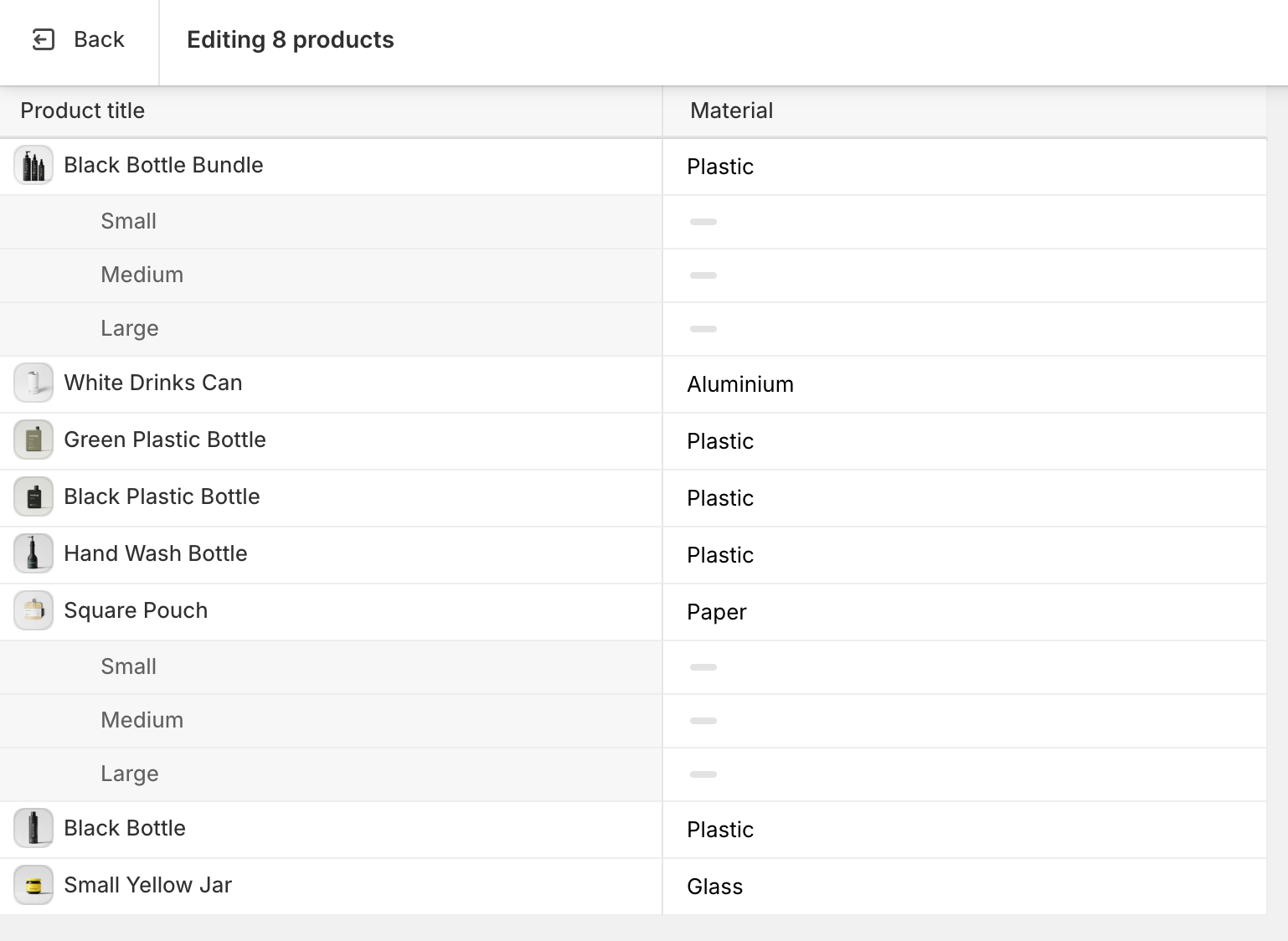
If the metafield exists but hasn’t been populated across your store, your reports won’t show meaningful data.
Once everything is assigned properly, you’re ready to build reports.
How to Build a Metafield Report in Shopify
Head to:
Analytics → New exploration
From here:
Choose your metrics (e.g. Total Gross Sales, Net Sales, AOV, Orders)
Add a time dimension (e.g. Month or Week)
Then scroll to your relevant entity (Products, Customers, Orders)
At the bottom, you’ll now see a new Metafields section
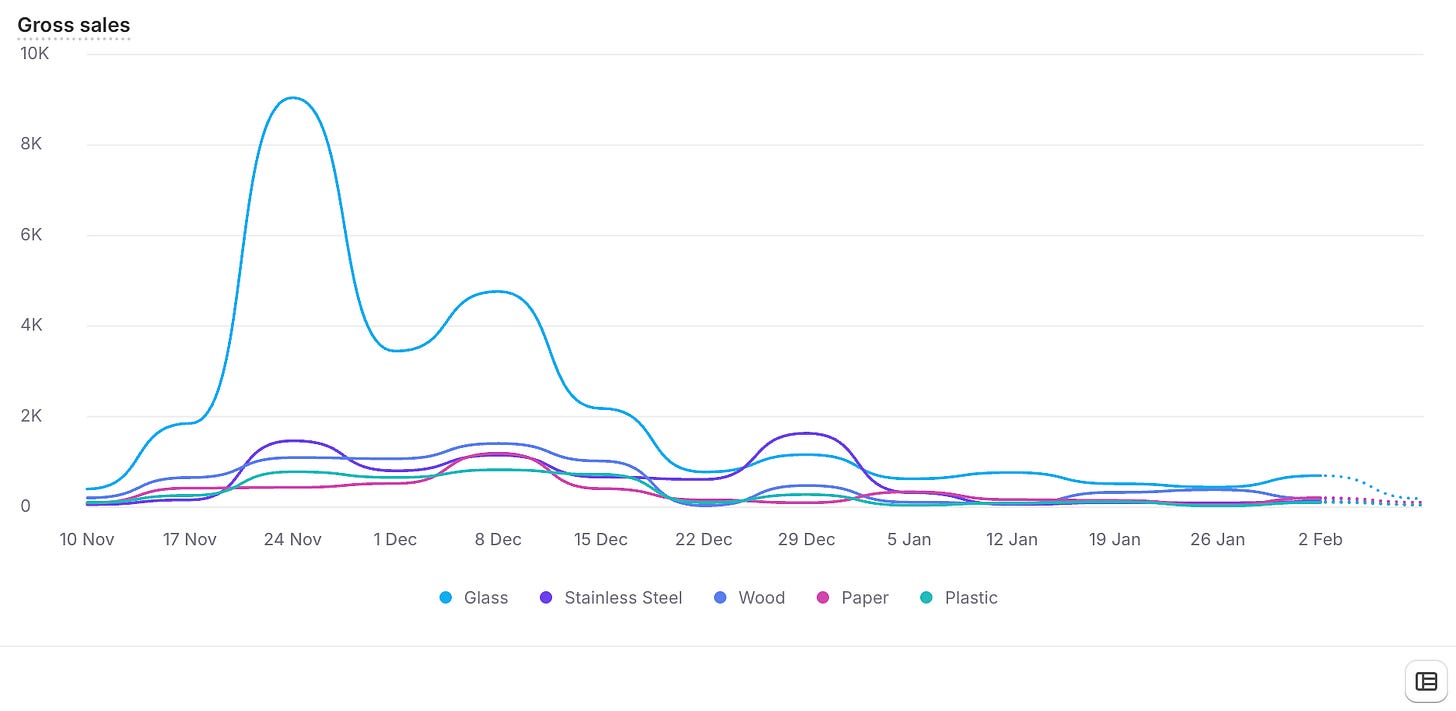
Select your metafield (e.g. Material)
Apply
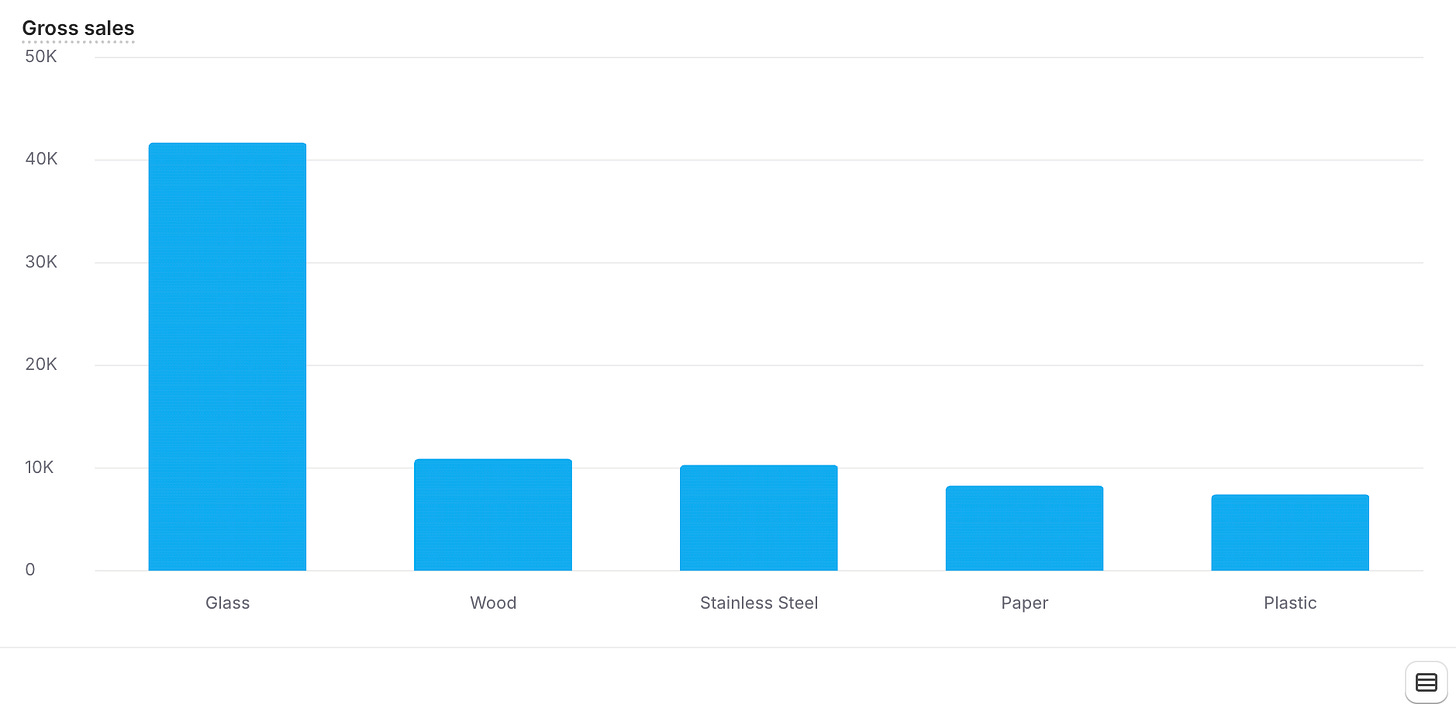
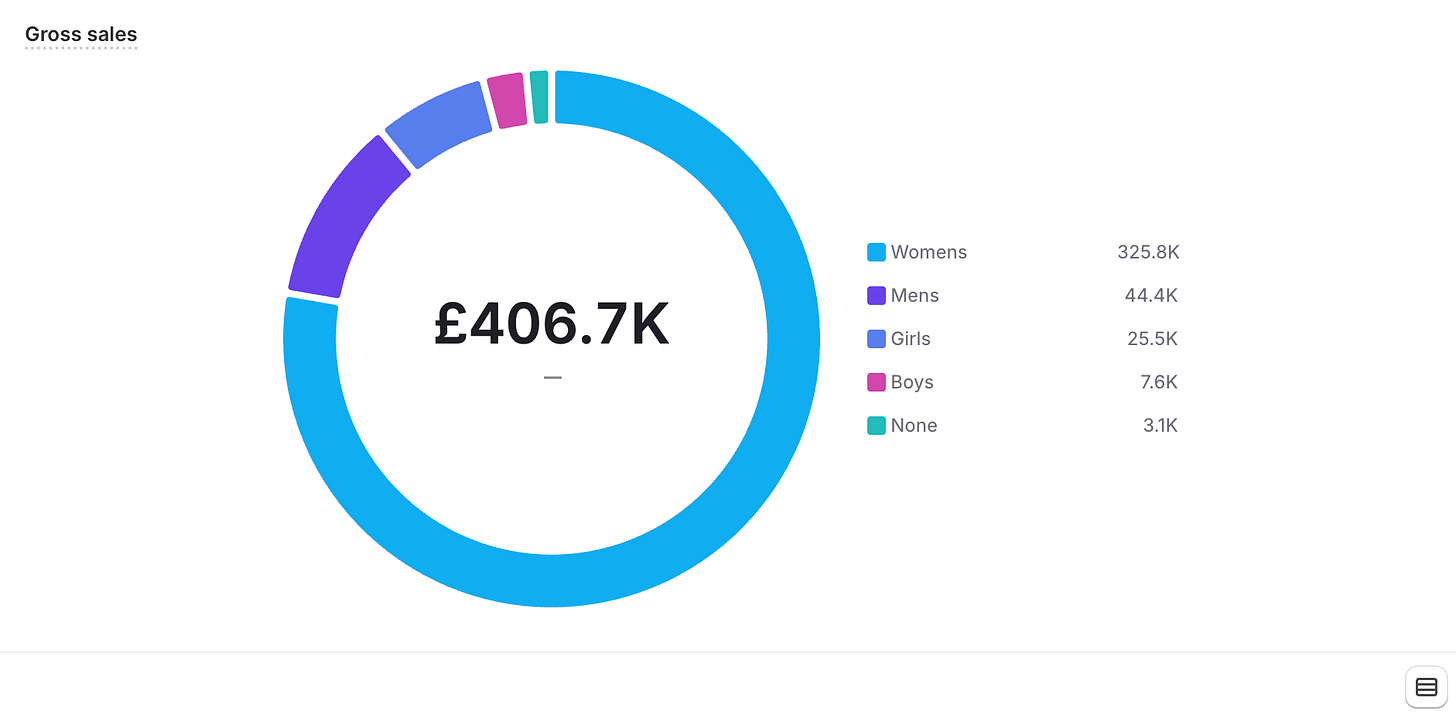
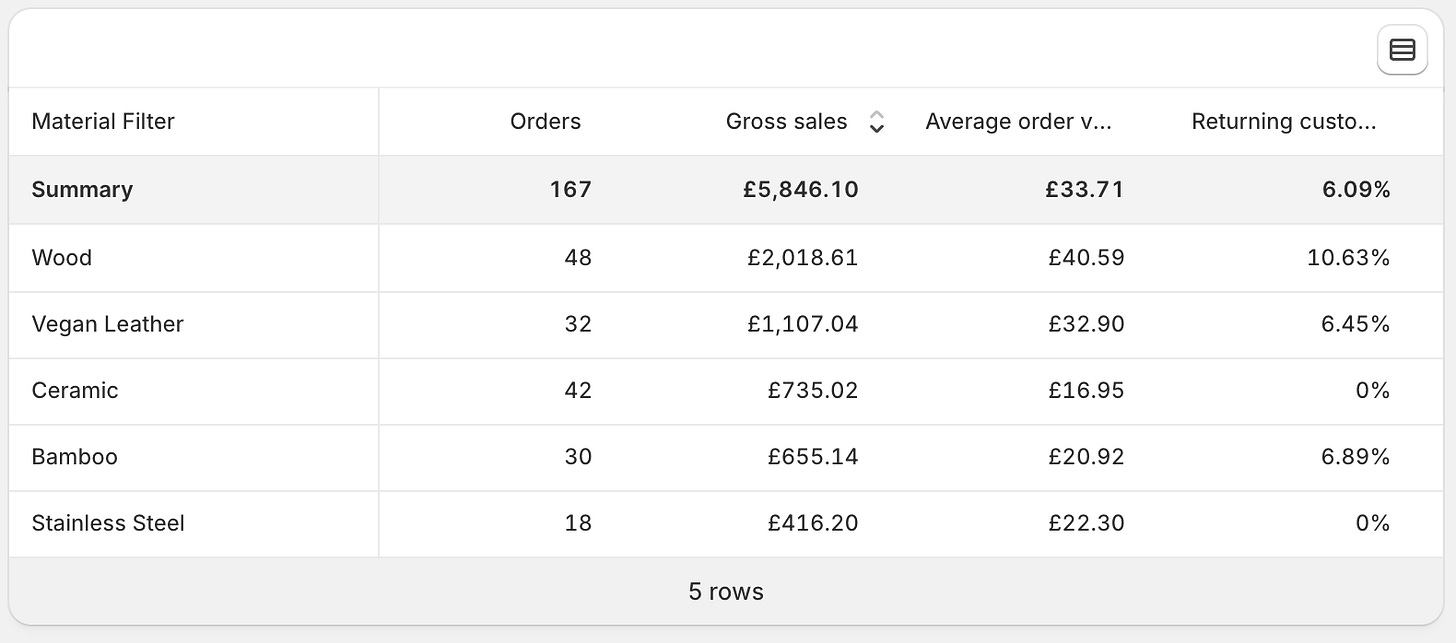
You can then visualise this however you like:
Line graph
Bar chart
Pie chart
Table
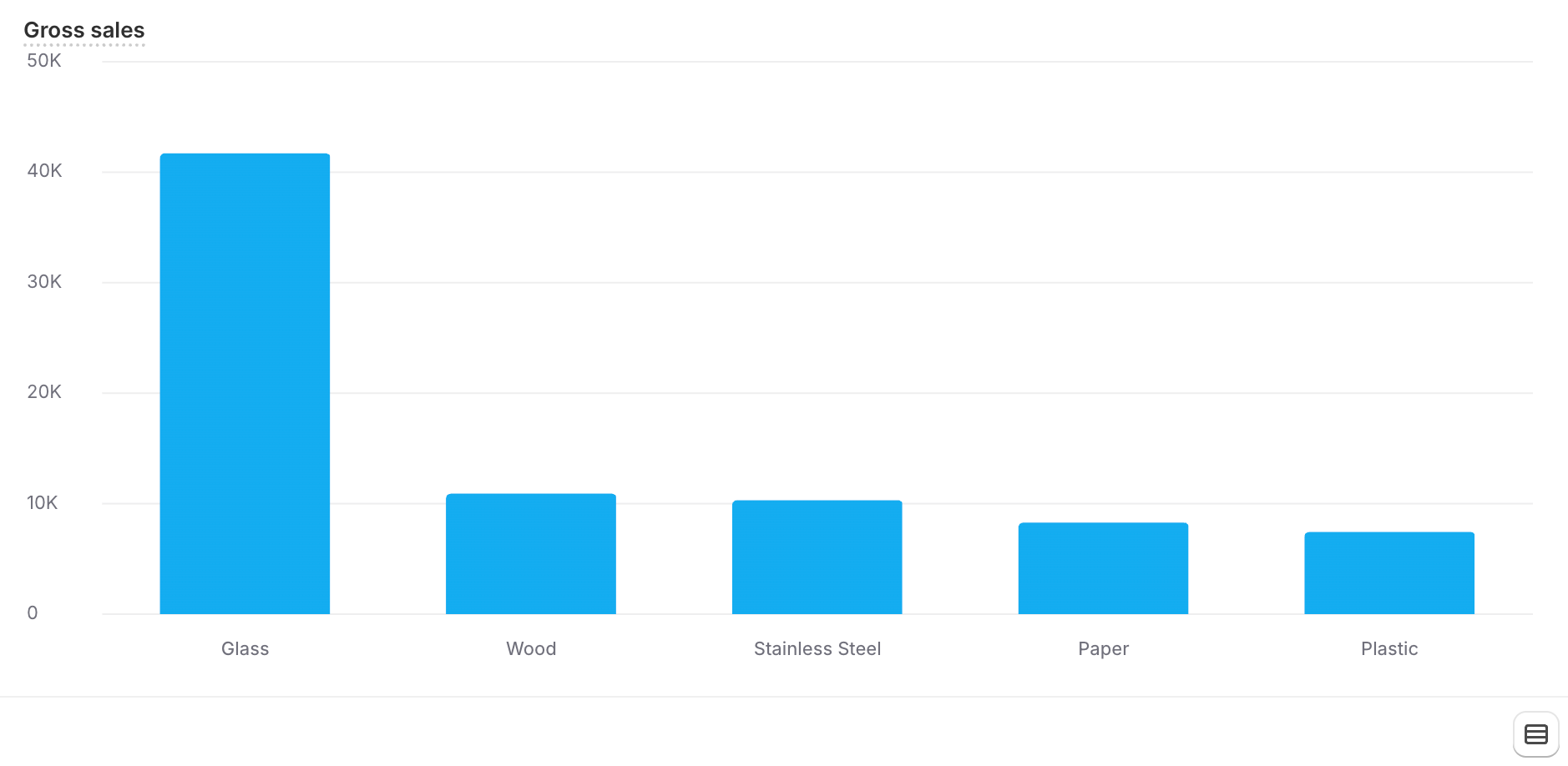
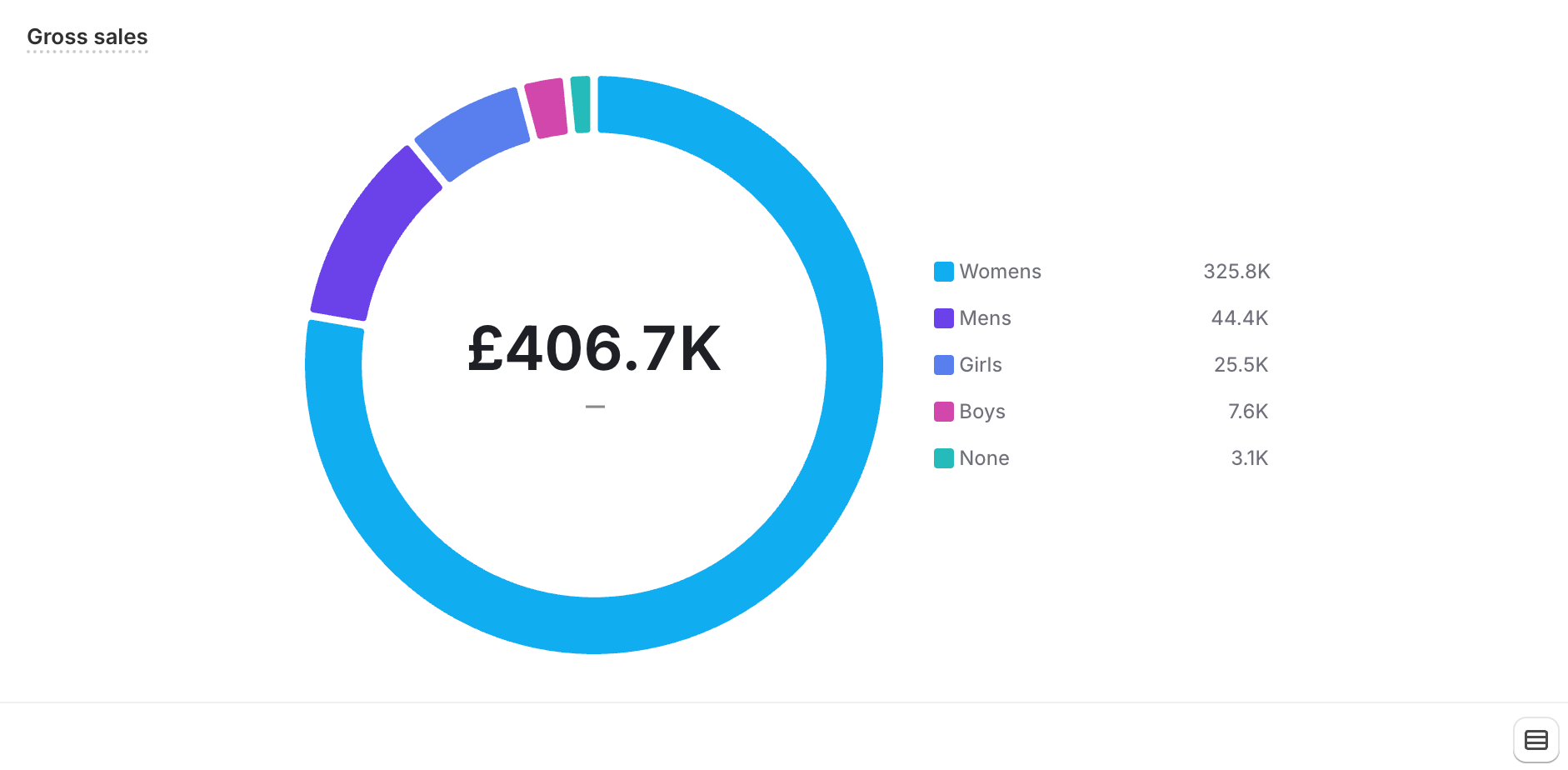
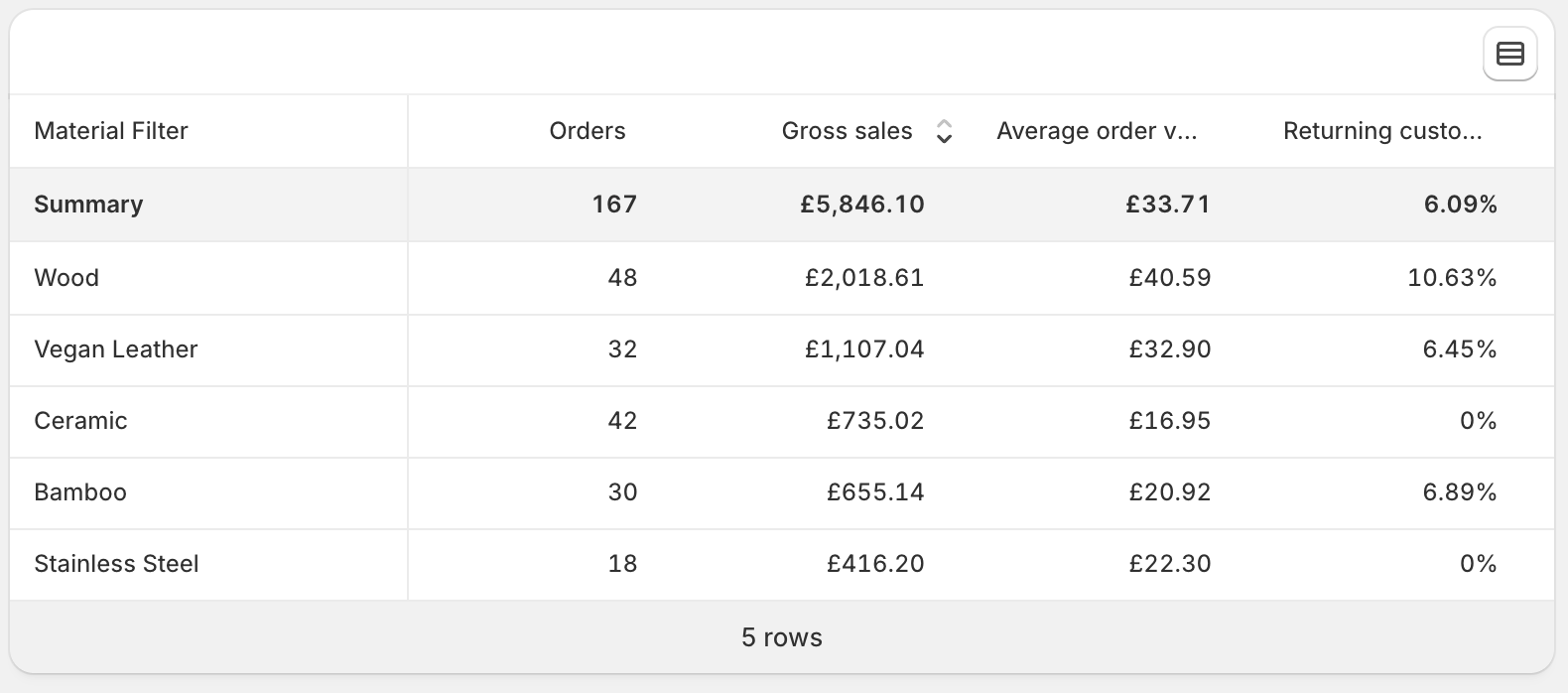
It’s fully customisable.
Why This Is So Powerful (Especially for CRO)
This is where things get interesting.
Metafields move from being “nice-to-have” to strategic data levers.
From a CRO and growth perspective, you can now ask questions like:
Do products made from a certain material convert better?
Do certain ingredients drive higher AOV?
Does one gender category outperform another?
Do seasonal products spike earlier than expected?
How does AOV differ between VIP and non-VIP customers?
Previously, this kind of analysis required workarounds, exports, or external tools.
Now it’s native inside Shopify.
That’s big.
Turning Metafields Into Strategy
This update changes how you think about your data.
Instead of just tracking:
Sales
Traffic
Conversion rate
You can now segment performance by attributes that actually matter to your business model.
For example:
If you discover that “Wood” products outperform “Metal” products in both conversion rate and AOV - that influences:
Buying decisions
Merchandising
Homepage features
Ad creative
Email segmentation
That’s not just reporting.
That’s strategy.
Key Things to Remember
Before you get excited and dive in:
Your metafield must be properly defined
It must be populated across your products/customers/orders
The “Use in analytics” toggle must be switched on
Miss one of those and it won’t work.
This Sounds Small - But It Isn’t
On the surface, this feels like a minor reporting update.
But it fundamentally changes how you can structure and analyse your store data.
If you’re already using metafields, you’ve just gained serious reporting power.
If you’re not using metafields yet - now is the time to start.
Because once your store data is structured properly, growth decisions become clearer, faster, and more confident.