

Improve Your Shopify Site Speed & SEO
How to Optimise Your Images for Faster Site Speed & Better Rankings

If your Shopify store feels a little slow to load, your images might be the reason why. Oversized files can seriously drag down your site speed - and that affects not just your customers’ experience, but also your SEO rankings.
In this guide (and in my new YouTube tutorial), I’ll show you exactly how to optimise your Shopify images the right way - from finding and compressing large files to renaming and adding ALT text for SEO.
📺 Prefer to follow along step-by-step?
In the video, I show exactly where to find each setting inside Shopify and walk you through my process in real time.
1. Finding & Filtering Large Images
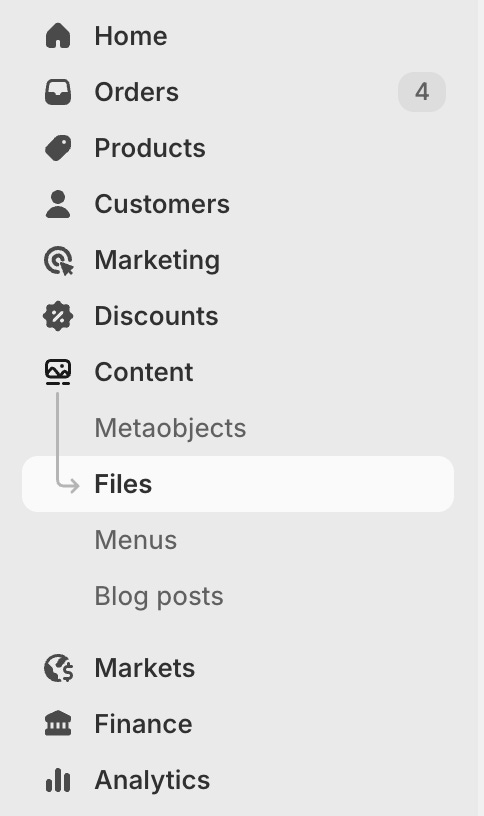
Start by heading to Content → Files in your Shopify admin. This is where all your uploaded images live.
By default, the files are sorted by newest first, but there’s a handy Size column you can use to find your biggest uploads.
Here’s what I recommend:
Click the filter icon at the top.
Choose File size > Minimum 0.3 MB (300 KB).
Save this as a new view called “>300KB”.
This filter shows all images over 300KB - my personal rule of thumb for the maximum file size you want to use. (That tip originally came from an SEO agency contact, and it’s served me well ever since.)
Once you’ve saved this filter, you can quickly access it anytime and sort from largest to smallest. This gives you a ready-made to-do list for optimisation.
2. How to Compress & Replace Images
Now that you know which images need attention, it’s time to optimise them.
Start with the largest one:
Click into the file and download it.
Head to Squoosh.app, a free browser-based compression tool.
Upload your image and check the file size in the bottom corner.
In my example, the original image was 2.79MB - far too large. I resized it from 3,872px wide down to 1,500px, which reduced the size by 94% to just 170KB.
You can also adjust the quality slider if needed until you’re under 300KB.
Once you’re happy, download the optimised image, then return to Shopify. Hover over the original file and click Replace. Upload your new optimised version.
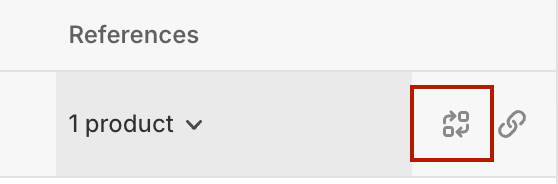
By replacing the existing image rather than uploading a new one, Shopify automatically updates every reference across your site (products, collections, homepage, etc.). No broken links, no extra admin work.
3. Renaming Image Files & Adding ALT Text
Now let’s optimise for SEO.
If your image is called something like photo.jpeg, Google has no idea what it’s showing. To fix this:
Click into the file again.
Update the File name to something descriptive (e.g.
small-yellow-jar.jpeg).Add ALT text describing the image naturally - again, “small yellow jar” in this case.
This small step helps search engines understand your content and can improve your visibility in image search results.
4. Speeding Up the Process with My Free Tool
If you’ve got a lot of images to rename, this can get repetitive fast.
To make things easier, I’ve built a free Image Naming Tool on my website.
Just describe your image (e.g. “small yellow jar”), and you can automatically add prefixes (like “AW25”) or suffixes (like “cutout” or “lifestyle”) to create consistent, SEO-friendly filenames in one click.
Then simply copy and paste the new name back into Shopify - done!
5. The Payoff
With just a bit of work, you’ll have:
Faster-loading pages 🚀
SEO-optimised images 🔍
A smoother shopping experience that can even boost conversions 💰